 Moknah
Text to Speech
Type or paste text, pick a voice and generate. Made for clips up to 1,500 characters.
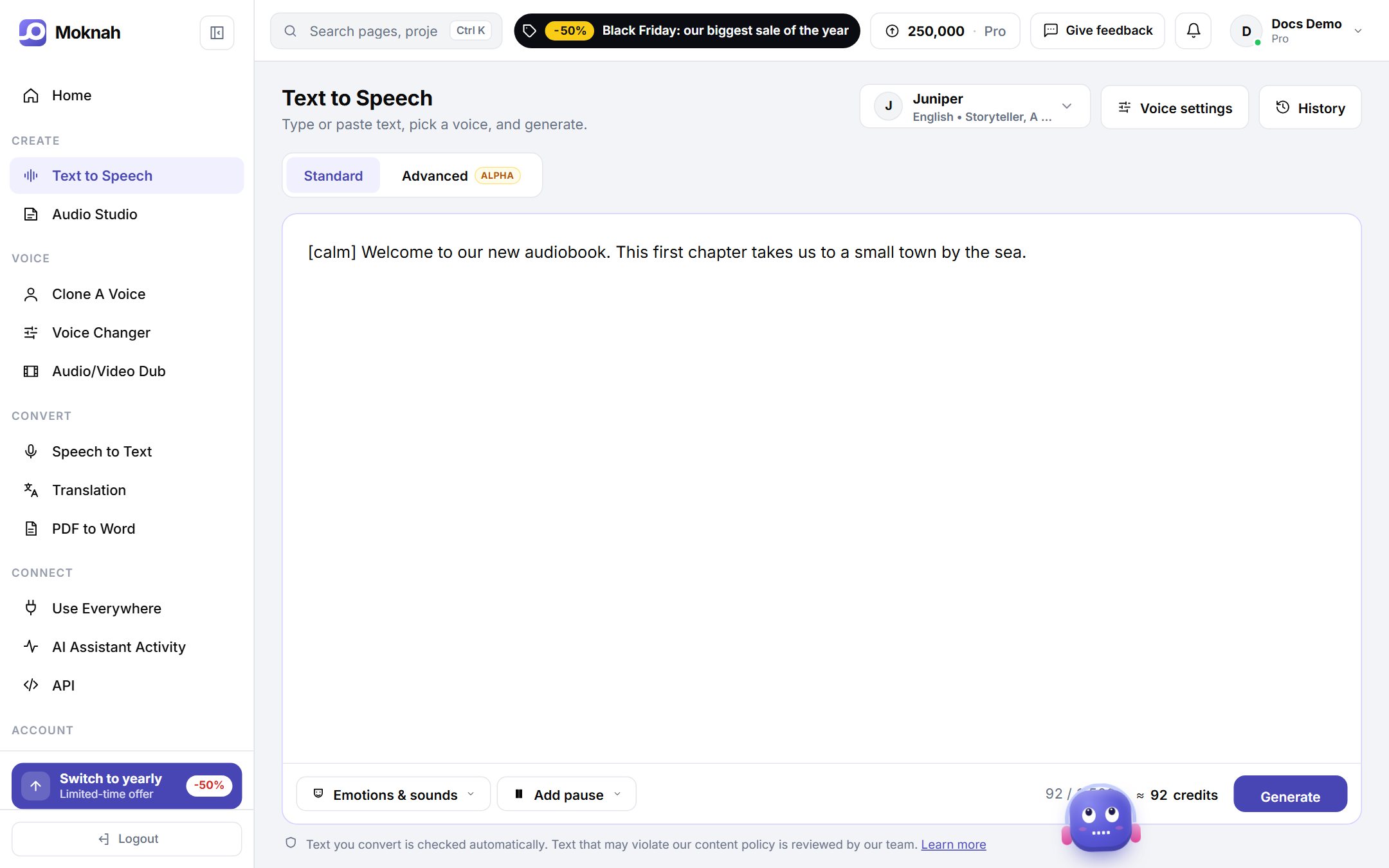
Make your first clip
- Open Text to Speech from the sidebar.
- Click Select a voice and choose one. Press play on any voice to hear it first.
- Type or paste your text. The box holds up to 1,500 characters.
- Check the estimated credits next to Generate, then click Generate.
- Play the result and download it as MP3 or WAV. Earlier clips are in History.
For books, long articles or anything over 1,500 characters, use the Audio Studio.
Standard and Advanced engines
Use the switch at the top of the page to choose an engine.
- Standard: studio voices, your cloned voices and full voice settings, with three modes to choose from.
- Advanced (alpha): its own set of voices, directed in plain words through the Context box. It costs ×1.5 credits.
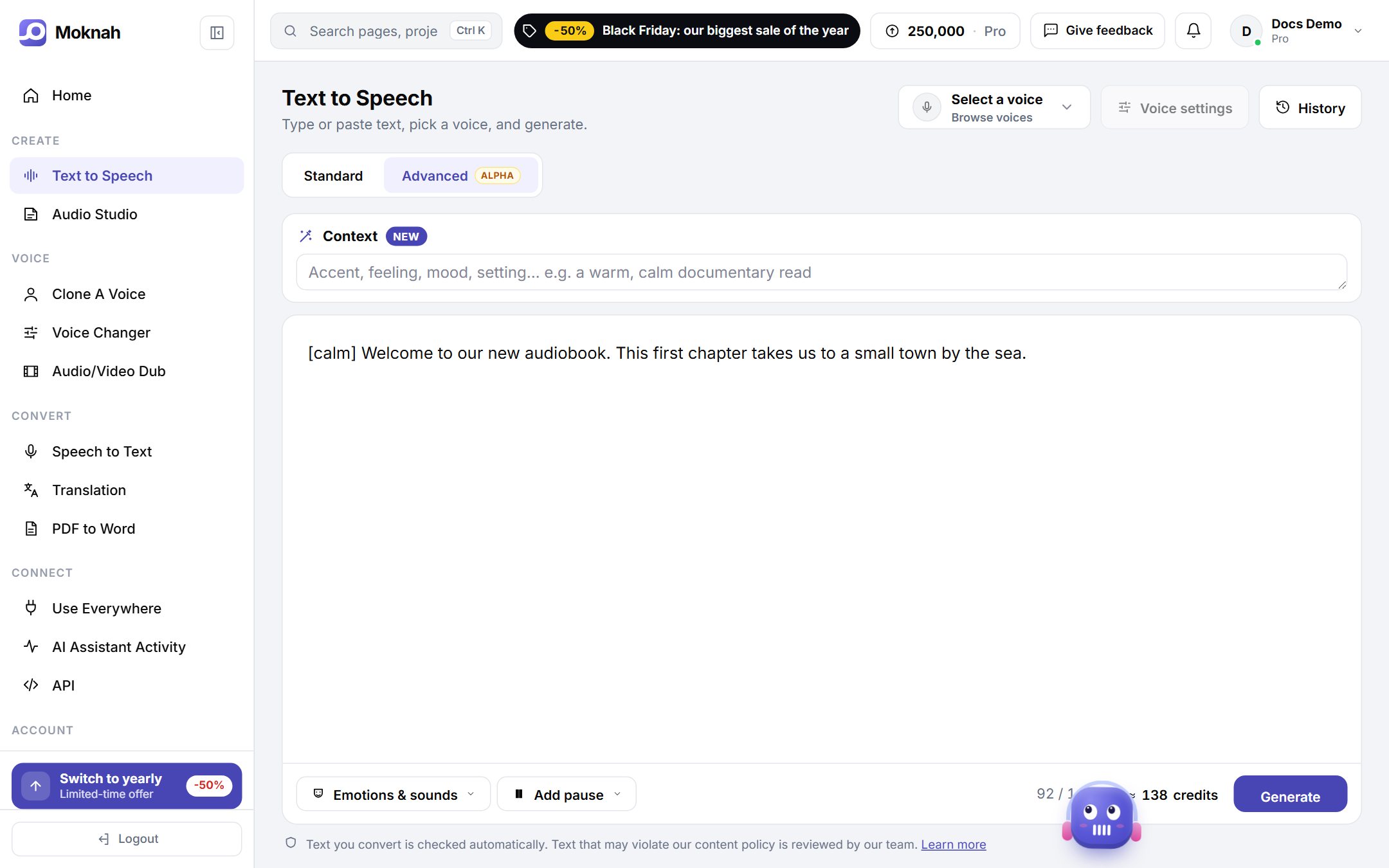
Advanced engine settings
| Setting | What it does |
|---|---|
| Context | Describe in your own words how the text should be performed: the mood, the pace, who is speaking and to whom. On a phone, tap Context above the text box. |
| Temperature | In Voice settings, under Voice properties. Lower makes the delivery steadier and more predictable, higher makes it more varied and expressive. Default suits most texts. |
If the Advanced engine stops before the end of your text, Moknah notices and generates the clip again on its own. If it still cannot finish, your credits are refunded.
Standard engine modes
| Mode | Credits | Best for |
|---|---|---|
| Emotion & dialect | ×1 | Fast, expressive speech with emotions and dialects. This is the default. |
| Quality emotion & dialect | ×2 | Richer, more natural emotions and dialects. Takes a little longer. |
| Studio Quality | ×2 | Clean, consistent narration with full voice controls. No emotion tags. |
Emotions, sounds and pauses
In the two emotion modes you can direct the delivery with tags. Click Emotions & sounds under the text box to insert one, or type it yourself in square brackets.
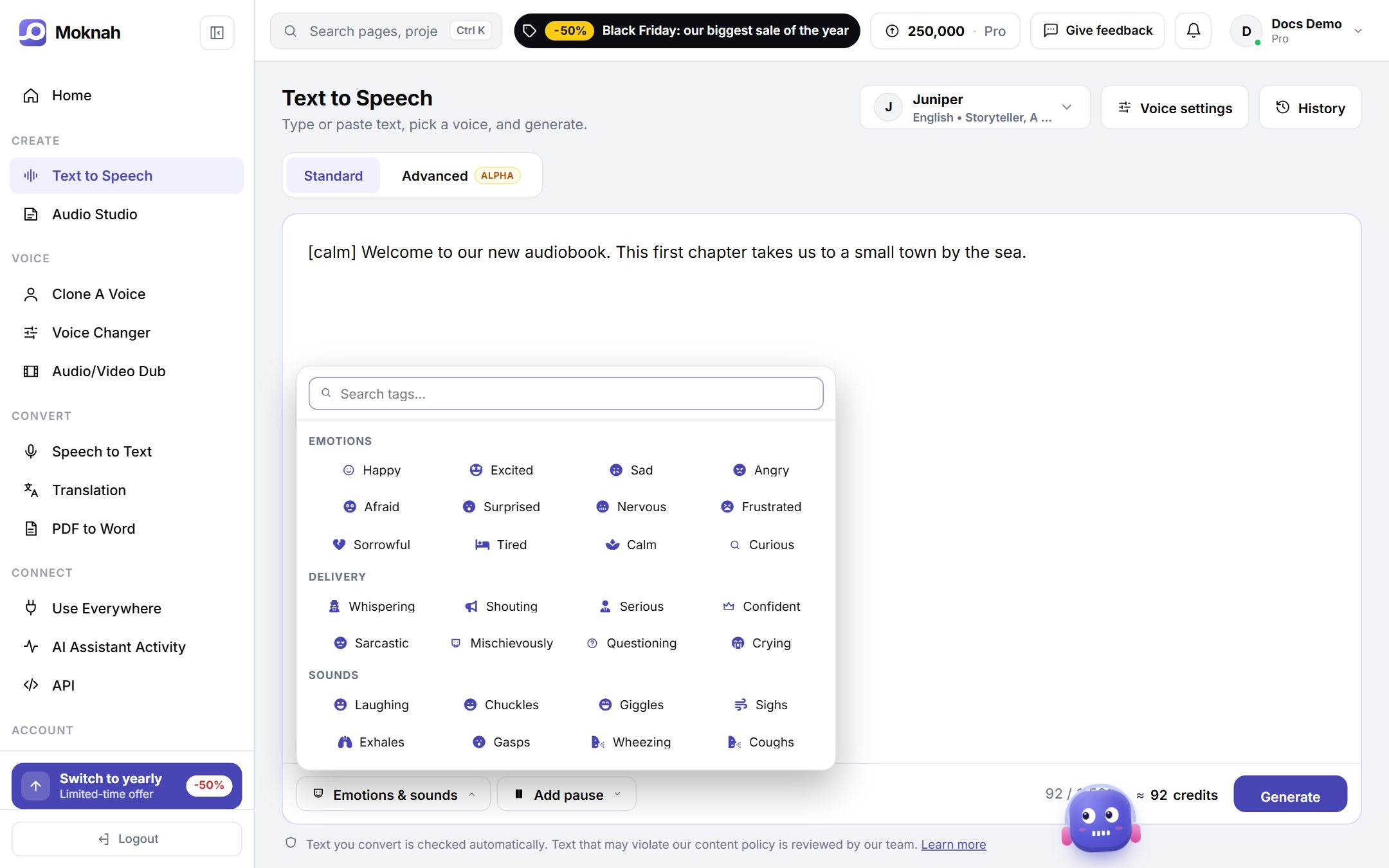
| Type | Examples |
|---|---|
| Emotions | [happy] [excited] [sad] [angry] [afraid] [calm] [curious] |
| Delivery | [whispering] [shouting] [serious] [sarcastic] [questioning] [crying] |
| Sounds | [laughing] [chuckles] [sighs] [gasps] [coughs] [yawns] |
| Effects | [applause] [clapping] [gunshot] [explosion] |
To add a pause, click Add pause and choose 0.5, 1 or 2 seconds.
Tags are written in English whatever the language of your text. Very short texts can sound uneven, so give the voice at least a sentence or two.
Voice settings
Click Voice settings to fine-tune the voice. The same settings are used in the Audio Studio.
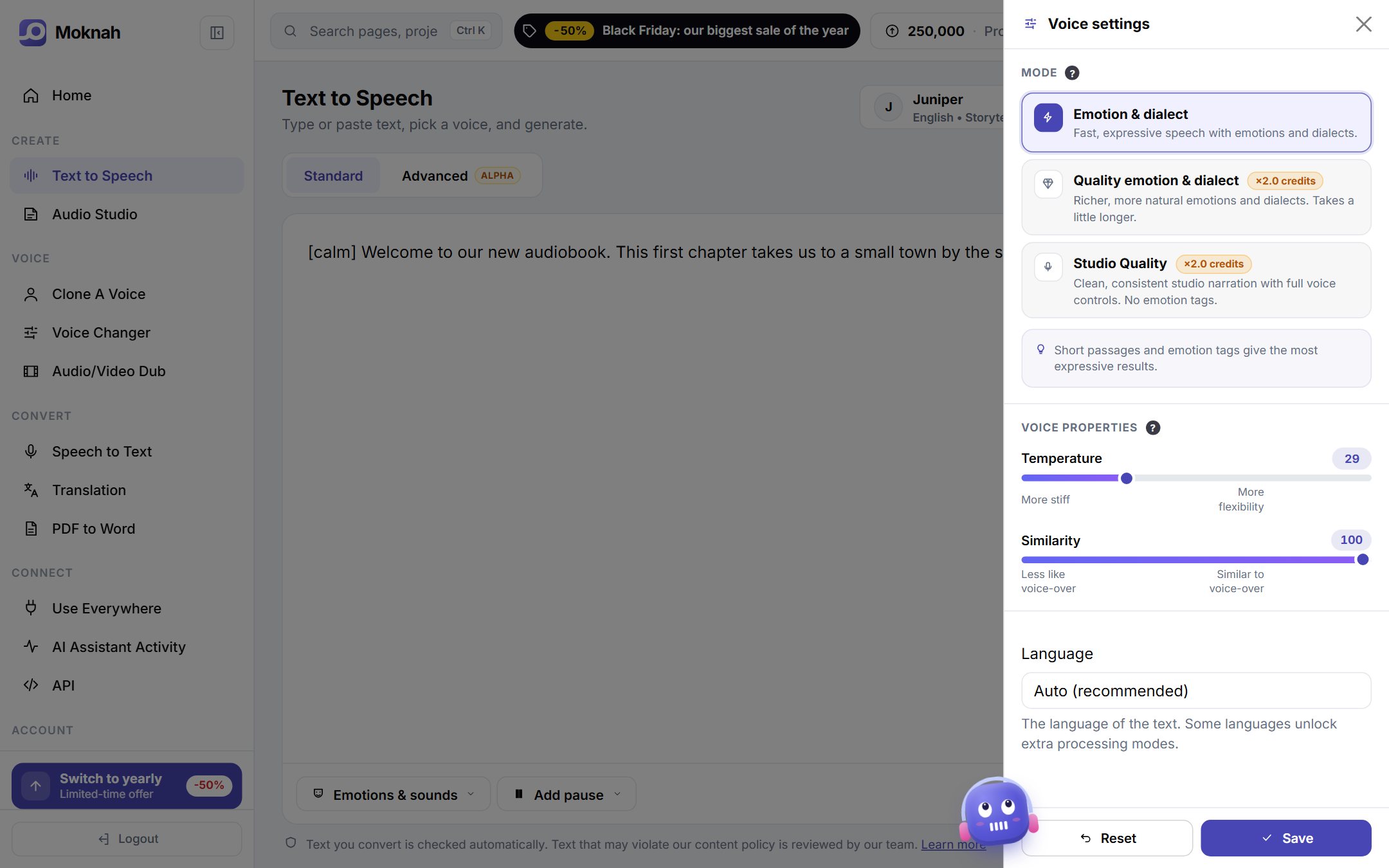
| Setting | What it does |
|---|---|
| Temperature | Higher gives the voice more freedom and expression, lower makes it steadier. Around 25 to 50 is a good start. |
| Similarity | How closely the result follows the original voice. Lower it if the voice was cloned from noisy samples. |
| Speed | Studio Quality only. From 0.7 to 1.2. Extreme values can lower the quality. |
| Expressiveness | Studio Quality only. Adds emotion to the delivery. Keep it low for long narration. |
| Language | Leave it on Auto unless the voice reads your text in the wrong language. |
Text processing for Arabic
| Option | Credits | Use it for |
|---|---|---|
| Basic | ×1 | Every language, and Arabic dialects. |
| Arabic Tashkeel | ×2 | Standard Arabic. Adds diacritics so every word is pronounced correctly. |
| AI Poet | ×2 | Poetry and literary Arabic. |
Polish the sound
After you generate, open Mastering in the player. Start from a preset such as Podcast, Warm or Cinema, adjust bass, treble, reverb and loudness, then download the result.
Writing tips
Numbers and symbols are read more reliably when you write them out.
| Instead of | Write |
|---|---|
$45.67 | forty-five dollars and sixty-seven cents |
Dr. | Doctor |
100% | one hundred percent |
moknah.io/docs | moknah dot io slash docs |
Text you convert is checked automatically. Text that may break our content policy is reviewed by our team.