 Moknah
Speech to Text
Subtitles from speech or your own text, translated and burned onto your video.
Speech to Text is one place for four steps. Start from your audio, your own text or a subtitle file you already have, then add the steps you need: translate the subtitles, burn them onto your video, or both. Use one step on its own or chain them in a single job.
| Step | What it does | Credits |
|---|---|---|
| Speech to text | We write what is said in your audio or video, with the timing of every word. | By the minute |
| Sync my text | You already have the exact text: we time every word to the speech. | By the minute |
| My subtitle file | Bring an SRT or VTT file to translate it or burn it onto a video. | Free |
| Translate | The same subtitles and timing in another language, reviewed line by line. | By the length of the subtitles |
| Burn onto video | Draws the subtitles on your video with a word-by-word highlight. | Free |
Start a job
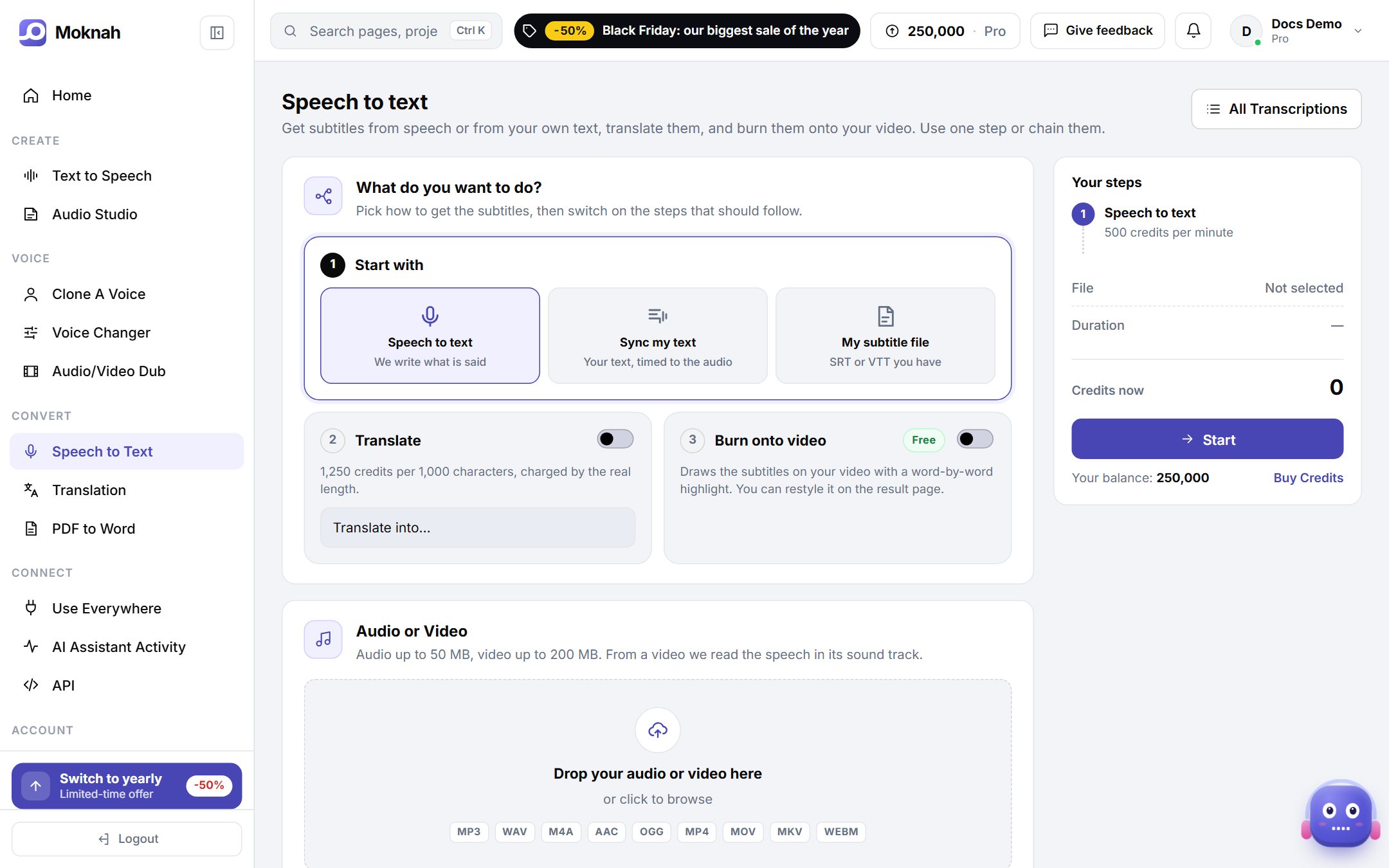
- Open Speech to Text and click New.
- Under Start with, choose Speech to text, Sync my text or My subtitle file.
- Switch on Translate and pick a language, and switch on Burn onto video if you want the subtitles drawn on your video.
- Upload your file: audio up to 50 MB, video up to 200 MB, or a subtitle file up to 2 MB. From a video, we read the speech in its sound track.
- Choose how the text is cut into lines: Standard splits at natural pauses, Word level gives short lines with the number of words you choose, great for social videos.
- Choose the spoken language, add a title if you like, check the summary and click Start.
Choose the exact language and region, for example Arabic (Jordan) or English (United Kingdom). It makes a real difference to accuracy.
Sync my text
Already have the transcript, for example a script or a book chapter? Choose Sync my text, upload the audio and paste the text. It should match what is said, word for word. You get subtitles timed to every word, without any transcription mistakes.
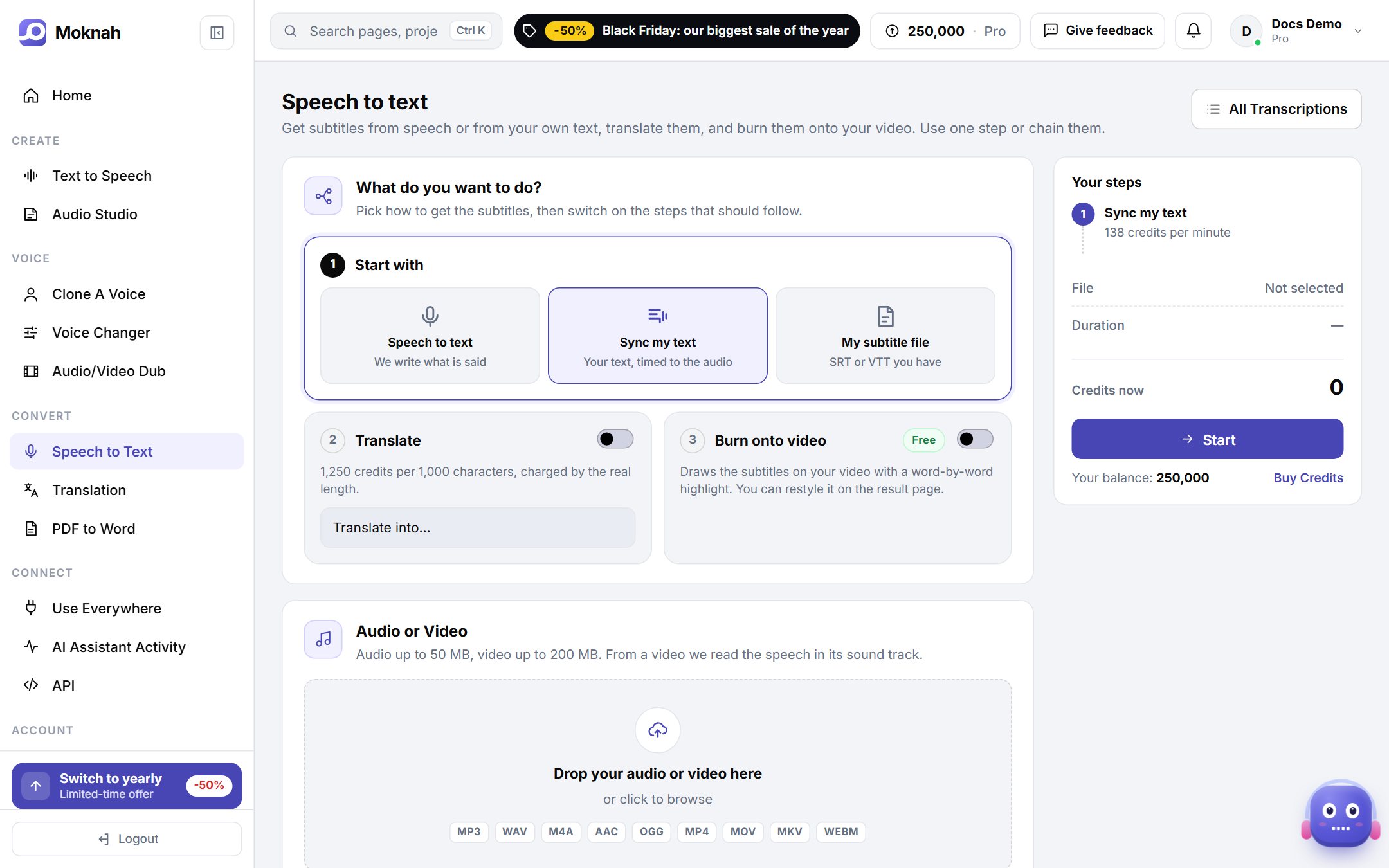
Use Speech to text when you only have the audio. Use Sync my text when you already have the exact text and need precise timing. Use My subtitle file when the subtitles are ready and you only want to translate or burn them.
Your subtitles
The job opens on its own page, which updates by itself while it works. Your steps are listed at the top with their progress. When the subtitles are ready you can read them in the preview, copy them, or click Download SRT File. Longer audio takes longer, sometimes a few minutes.
Translate the subtitles
Turn on Translate when you start, or open a finished job later and choose a language under Translations. The translation keeps the same timing, so it fits the video as it is.
- You see the estimated credits before you start. Translation is charged when it starts, by the real length of the subtitles.
- Read through the translated lines side by side with the original, fix anything that sounds off, then click Save changes. Your edits are used for the download and for burning.
- Each language has its own Download SRT File button. Add more languages to the same job whenever you need them.
Burn the subtitles onto your video
- On the job page, click Choose your video. It plays from your device and is uploaded only when you burn.
- Pick which subtitles to burn: the original or one of the translations.
- Start from a preset, then adjust the word highlight, font, colors, size, words per line, capital letters, outline, shadow, background bar and position. The live preview shows the result on your video.
- Click Burn subtitles into video, wait for the render and click Download video.
Your video and the subtitled copy are deleted right after use, or after 10 minutes at most. Download the result in time. Burning is free, so you can burn again any time, with a new style too.
Earlier Sync Text-Audio jobs
Sync Text-Audio is now part of Speech to Text. Your earlier sync jobs are still there: on the Speech to Text page, click Open your earlier Sync Text-Audio jobs.