 Moknah
User Guide
Audio Studio
Produce audiobooks and other long audio, chapter by chapter.
Create a project
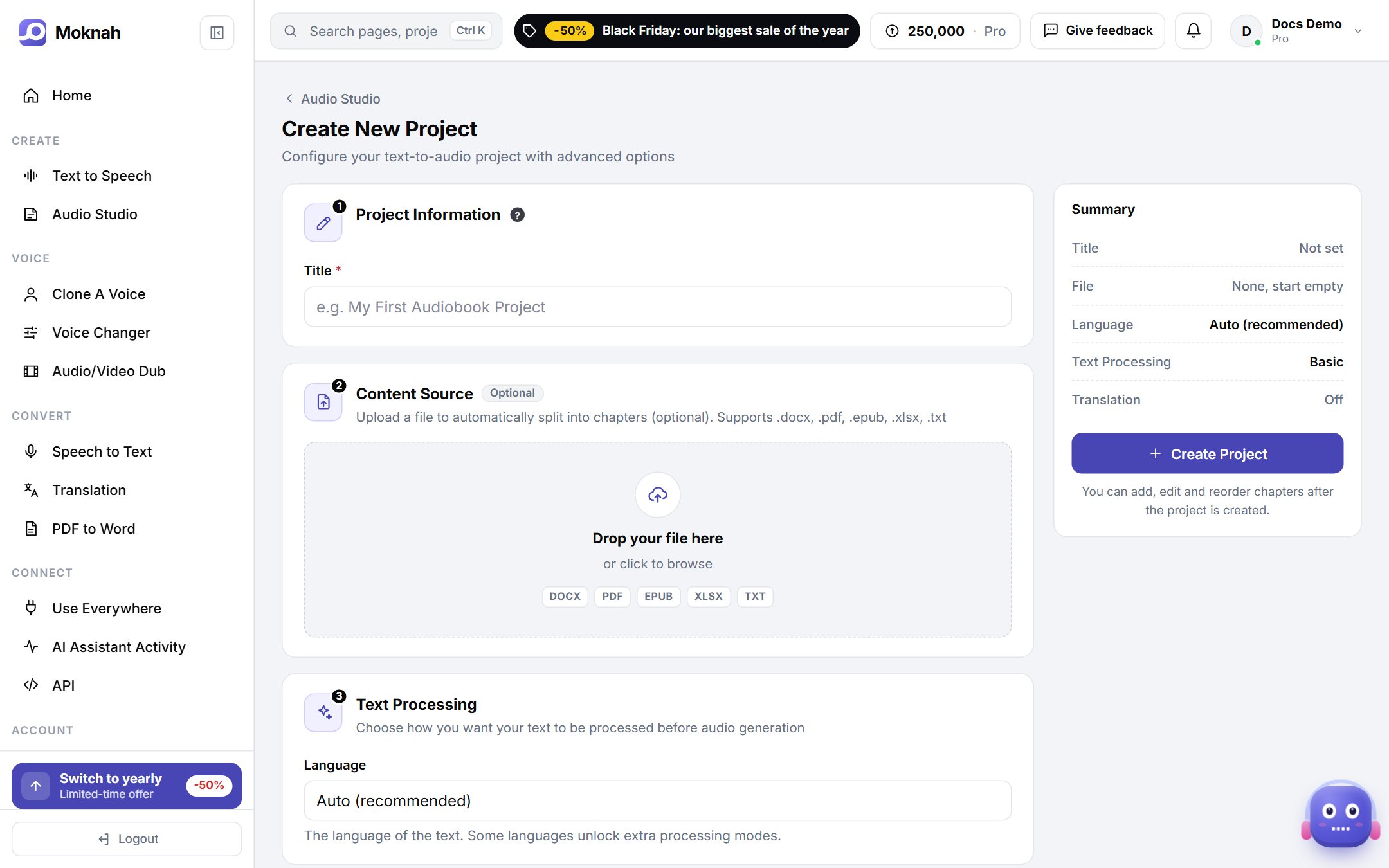
- Open Audio Studio and click New project.
- Give the project a title. You can add a document now or start empty and write the lines yourself.
- Choose how the text is split into lines: after each sentence, at every new line, or at a character you choose.
- Choose text processing: Basic for every language, or AI-Enhanced for Arabic.
- If you need the audio in another language, turn on translation and pick the languages.
- Click Create Project.
Chapters
A project opens on its list of chapters. Add chapters, drag them into order, and download each chapter as MP3, WAV, SRT or VTT.
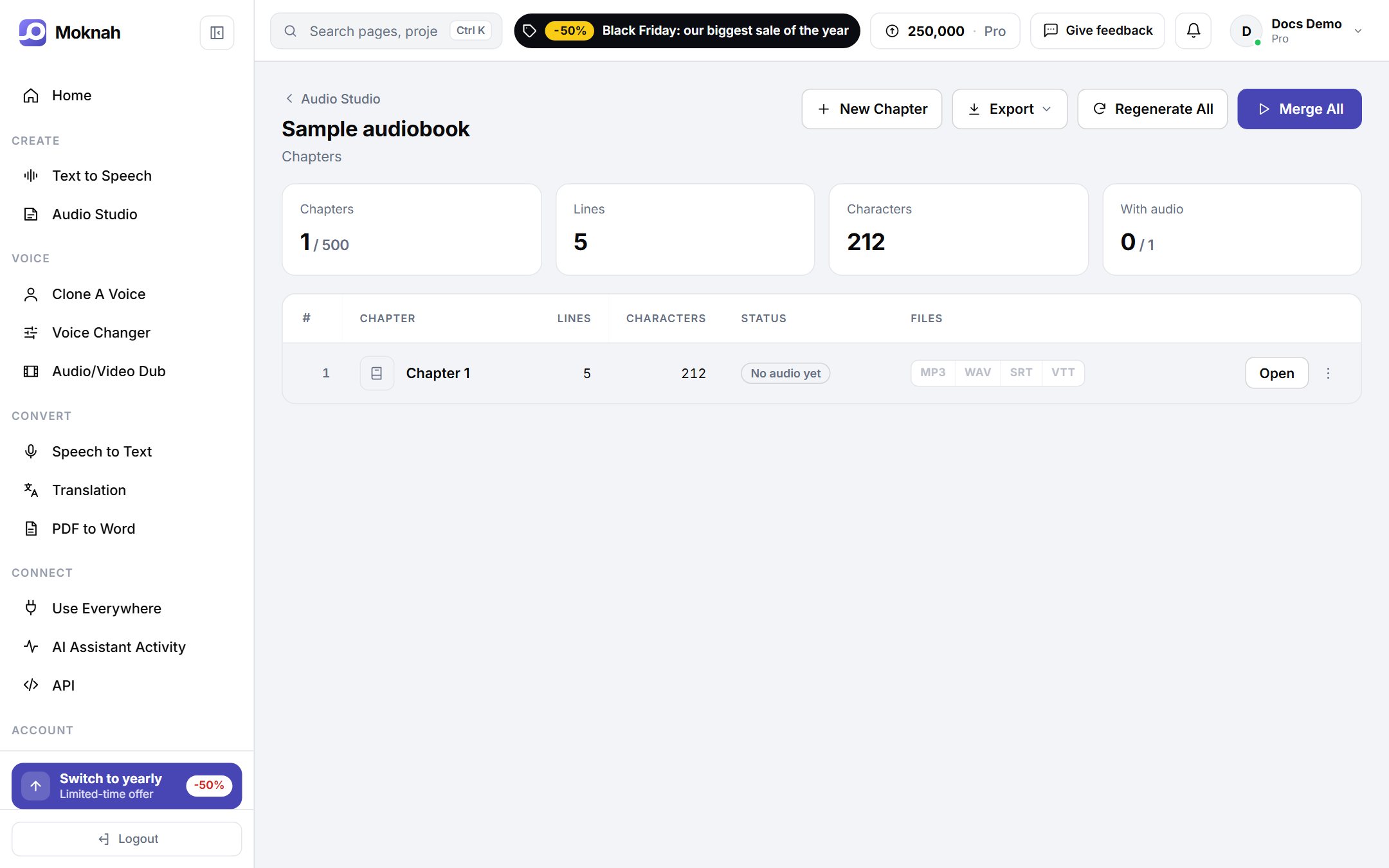
- Merge All: converts the lines that have no audio yet, then joins them. Lines that are already done are kept.
- Regenerate All: converts every line again.
- Export: all chapters as WAV files in a ZIP, the text as a Word document, or a timeline for Premiere Pro and DaVinci Resolve.
The line editor
Open a chapter to work on it line by line. Every line becomes one audio clip.
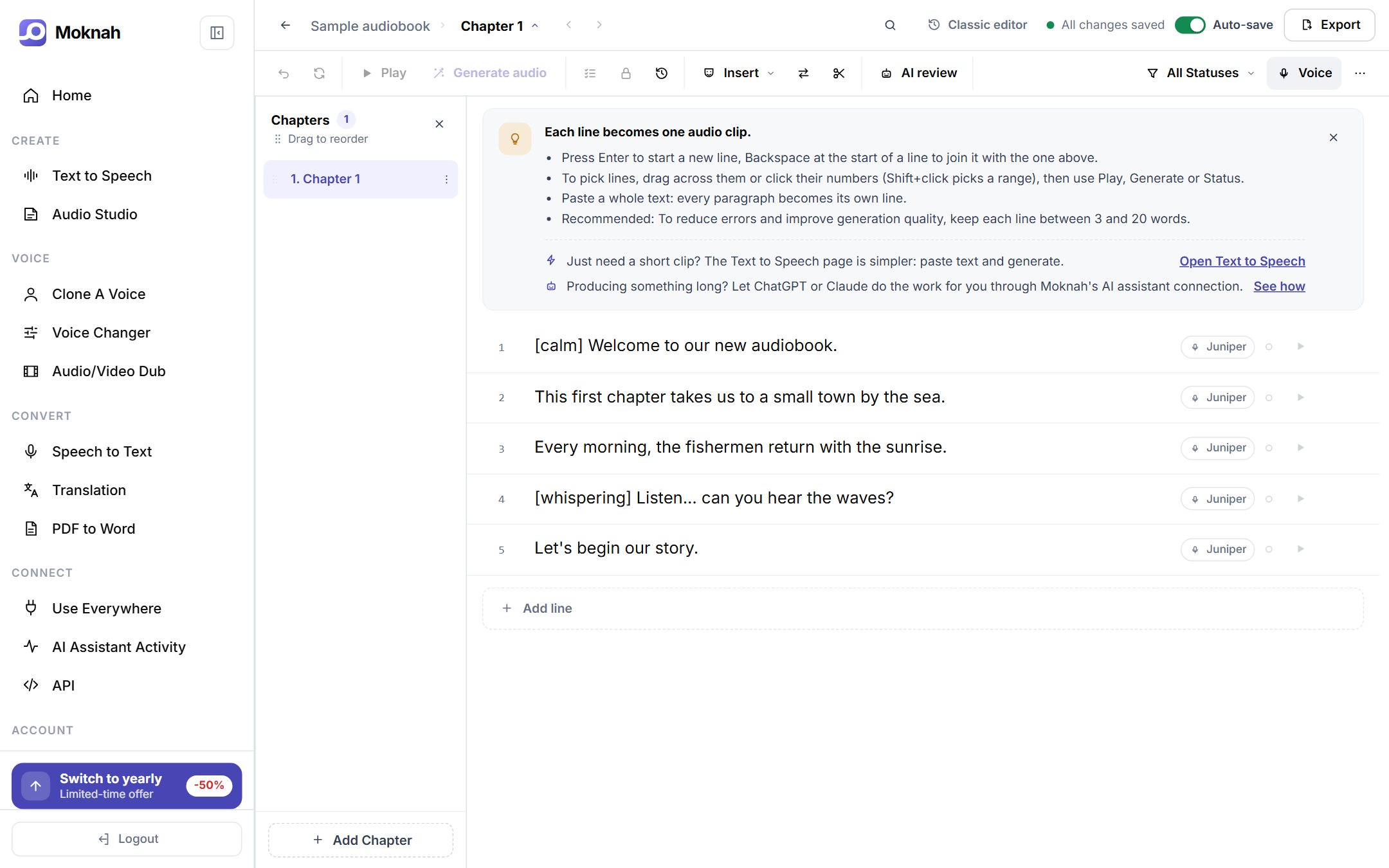
- Press Enter to start a new line, and Backspace at the start of a line to join it with the one above.
- Paste a whole text and every paragraph becomes its own line.
- Select several lines by dragging across their numbers, then play, generate or change their voice together.
- Use Insert to add emotions, sounds and pauses, Replace to find and replace text, and Split to cut a chapter in two.
- For the best results, keep lines between 3 and 20 words.
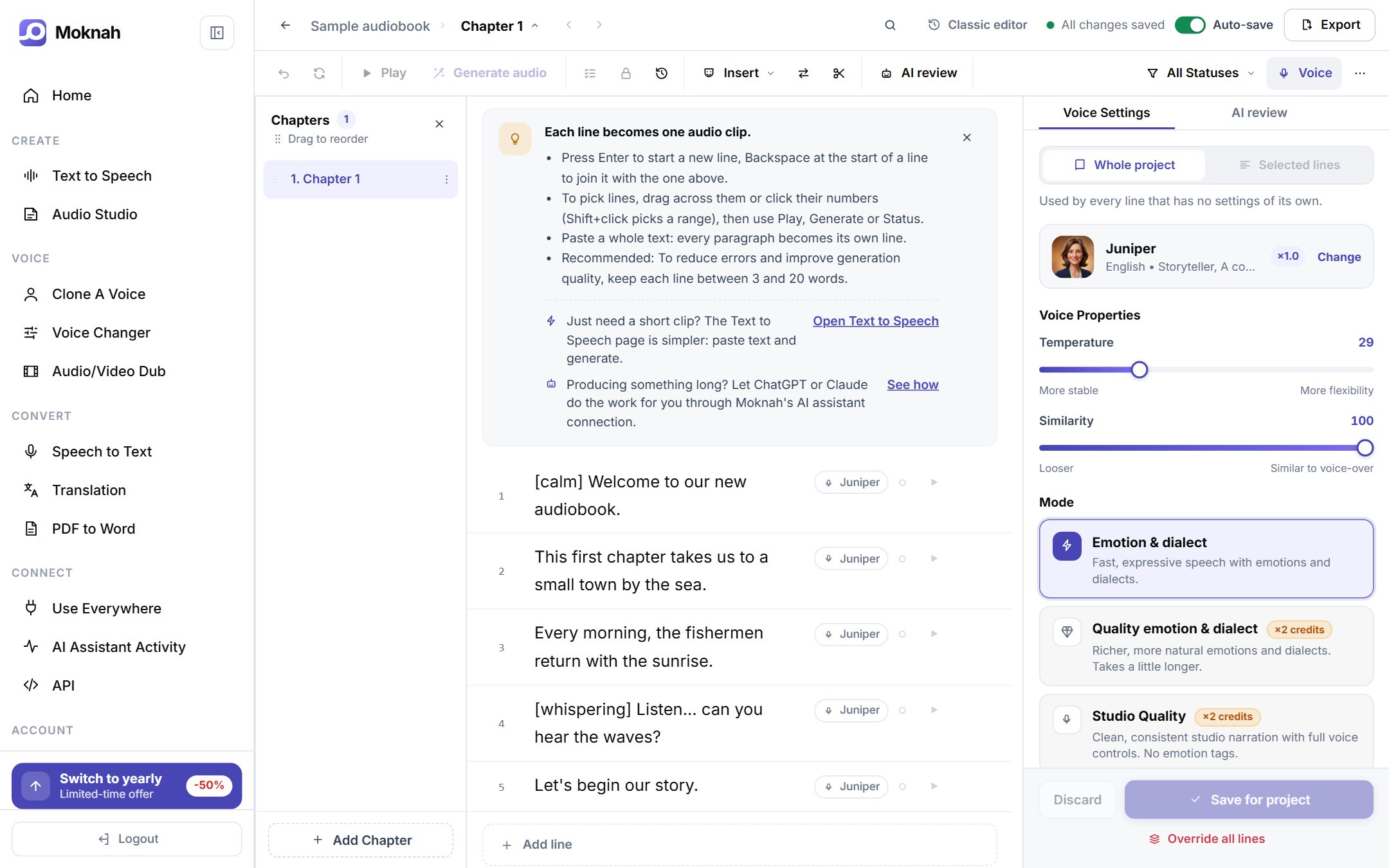
Voice settings for a project or a few lines
Voice Settings opens the same controls as Text to Speech. Save them for the whole project, or apply them only to the lines you selected. Lines with their own settings are marked in the editor.
With the Advanced engine, Context and Temperature work the same way: set them for the whole project, or give a few lines their own, for example a calmer narrator and a livelier dialogue.
Review before you publish
- Give each line a status, from Not started to Finalized, and filter the chapter by status.
- Run AI review to catch problems in the text before you generate.
- Lock a line to protect it, and use Version history to go back to an earlier take.
Let an AI assistant do the work
Connect Moknah to ChatGPT or Claude and ask it to turn a document into an audiobook. See how